

Project Initialization
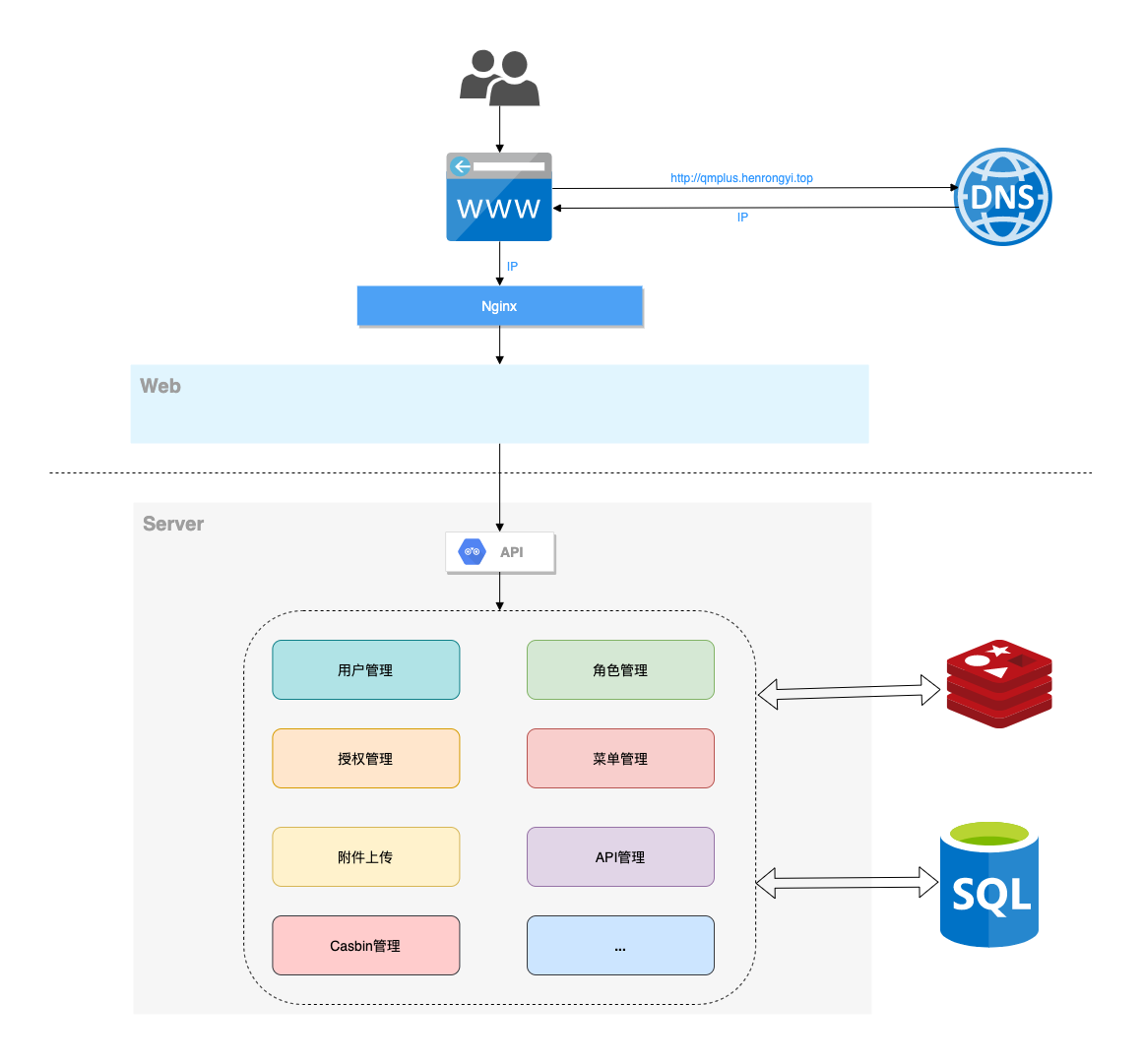
This guide will detail how to initialize and start the Gin-Vue-Admin project, including backend service, frontend application, and database configuration.
📺 Video Tutorial
If you prefer video learning, you can watch our video tutorial.
📋 Prerequisites
Before starting, please ensure you have completed:
- ✅ Environment Setup - Install Node.js, Go, MySQL and other necessary environments
- ✅ Clone project code to local
- ✅ Database service running normally
🚀 Quick Start
1. Clone Project
# Clone main branch code
git clone https://github.com/flipped-aurora/gin-vue-admin.git

# Enter project directory
cd gin-vue-admin
2. Project Structure Overview
gin-vue-admin/
├── server/          # Backend Go project
│   ├── main.go      # Program entry point
│   ├── config.yaml  # Configuration file
│   └── ...
├── web/             # Frontend Vue project
│   ├── src/         # Source code
│   ├── package.json # Dependency configuration
│   └── ...
└── README.md        # Project description
📚 Detailed Tutorial Videos
💡 Learning Suggestion
Strongly recommend watching the following episode video tutorials. Although the new UI style has some differences, the basic operations remain unchanged.
Basic Introduction
- 1. Clone Project and Install Dependencies
- 2. Initialize Project
- 3. Enable Debug Tools + Create Initialization Package
Feature Development
- 4. Manually Use Automated Creation Features
- 5. Create Business Using Existing Tables
- 6. Use AI to Create Business and Data Source Mode Options
- 7. Create Your Own Backend Methods
Frontend Development
- 8. Add a Frontend Page
- 9. Configure a Frontend Secondary Page
- 10. Configure Frontend Menu Parameters
- 11. Menu Parameter Practice + Dynamic Menu Title + Menu Highlight Configuration
- 12. Add Menu Controllable Buttons
Advanced Configuration
🔧 Backend Service Startup
1. Open Backend Project
Use GoLand or VS Code to open the server folder:
# Enter backend directory
cd server

# Open with GoLand (if installed)
goland .

# Or open with VS Code
code .
2. Install Dependencies
Run the following command in the project root directory to install Go module dependencies:
# Download and organize dependencies
go mod tidy
🔍 Command Description
go mod tidy: Add missing module dependencies, remove unused dependencies- This command will download required third-party packages based on the
go.modfile
3. Start Backend Service
Method 1: Command Line Startup
# Run in server directory
go run main.go
Method 2: GoLand Startup
- Open
main.gofile in GoLand - Click the green triangle button next to the line number
- Or use shortcut
Ctrl+Shift+F10(Windows/Linux) orCmd+Shift+R(macOS)
Method 3: VS Code Startup
- Press
F5or click debug button - Select "Go: Launch Package"
4. Verify Backend Startup
If you see the following output, the backend service has started successfully:
[GIN-debug] Listening and serving HTTP on :8888Visit http://localhost:8888/health to check service status.
🎨 Frontend Application Startup
1. Open Frontend Project
Use VS Code to open the web folder:
# Enter frontend directory
cd web

# Open with VS Code
code .
2. Install Dependencies
⚠️ Node.js Version Requirement
Ensure your Node.js version >= 18.16.2
# Install project dependencies
npm install

# Or use yarn (if installed)
yarn install

# Or use pnpm (recommended, faster)
pnpm install
3. Start Development Server
# Start development server
npm run serve

# Or use other package managers
yarn serve
pnpm serve
4. Verify Frontend Startup
If you see the following output, the frontend application has started successfully:
  App running at:
  - Local:   http://localhost:8080/
  - Network: http://192.168.1.100:8080/
🗄️ Database Initialization
1. Access Initialization Page
Visit in browser: http://localhost:8080/#/init
2. Configure Database Information
Fill in database connection information on the initialization page:
- Database Type: Select MySQL
- Host Address:
127.0.0.1 - Port:
3306 - Username:
root - Password: Your database password
- Database Name:
gva(will be created automatically if it doesn't exist)
3. Execute Initialization
- Confirm all information is correct
- Click "Initialize Now" button
- Wait for initialization to complete
4. Initialization Complete
After successful initialization, the system will:
- ✅ Create all necessary data tables
- ✅ Insert basic data (admin account, menus, permissions, etc.)
- ✅ Automatically redirect to login page
Default Admin Account:
- Username:
admin - Password:
123456
Appendix. Running Web Project with GoLand
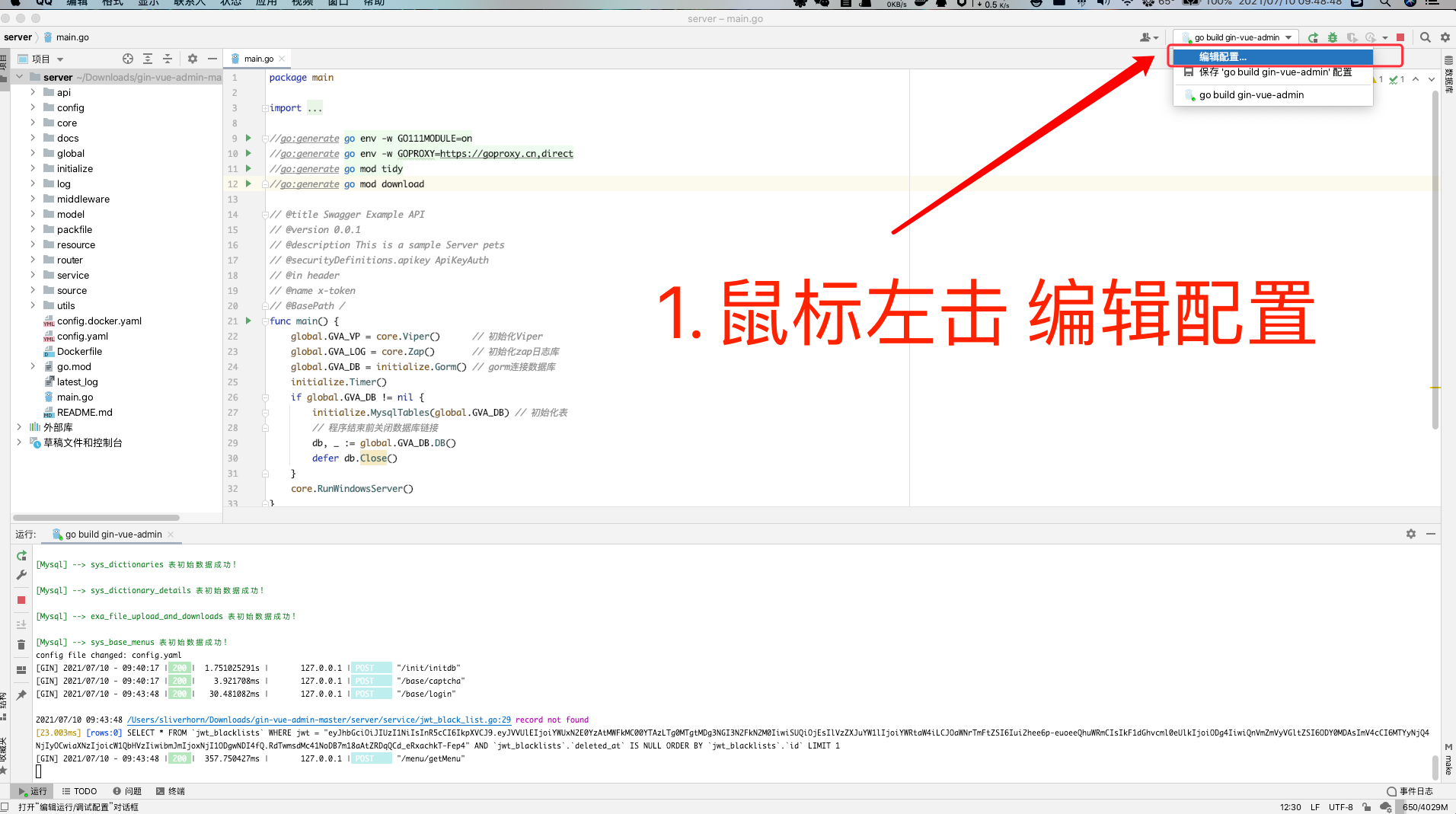
App.1 Edit Configuration
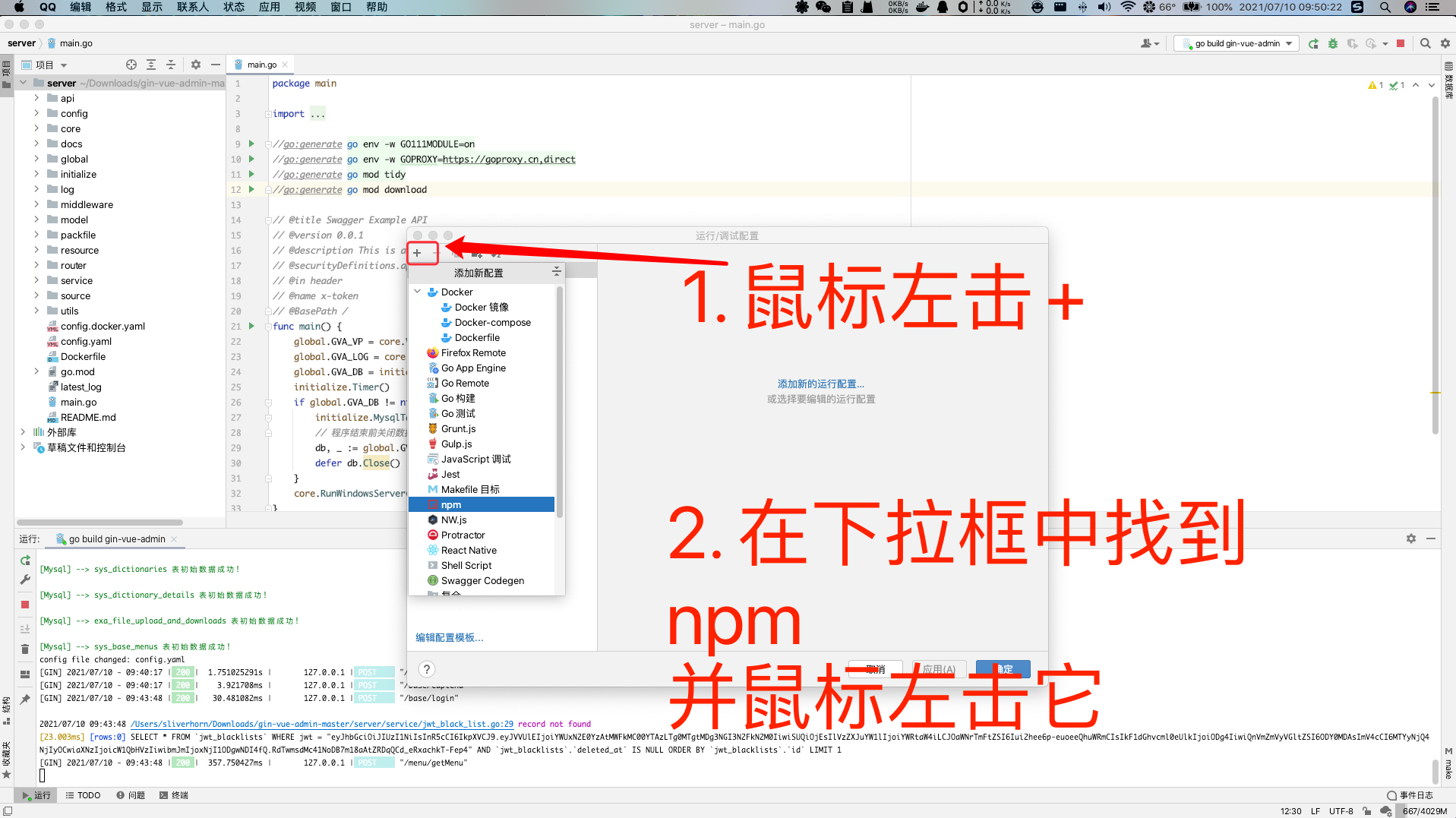
App.2 Add npm Startup Item
App.3 Configuration
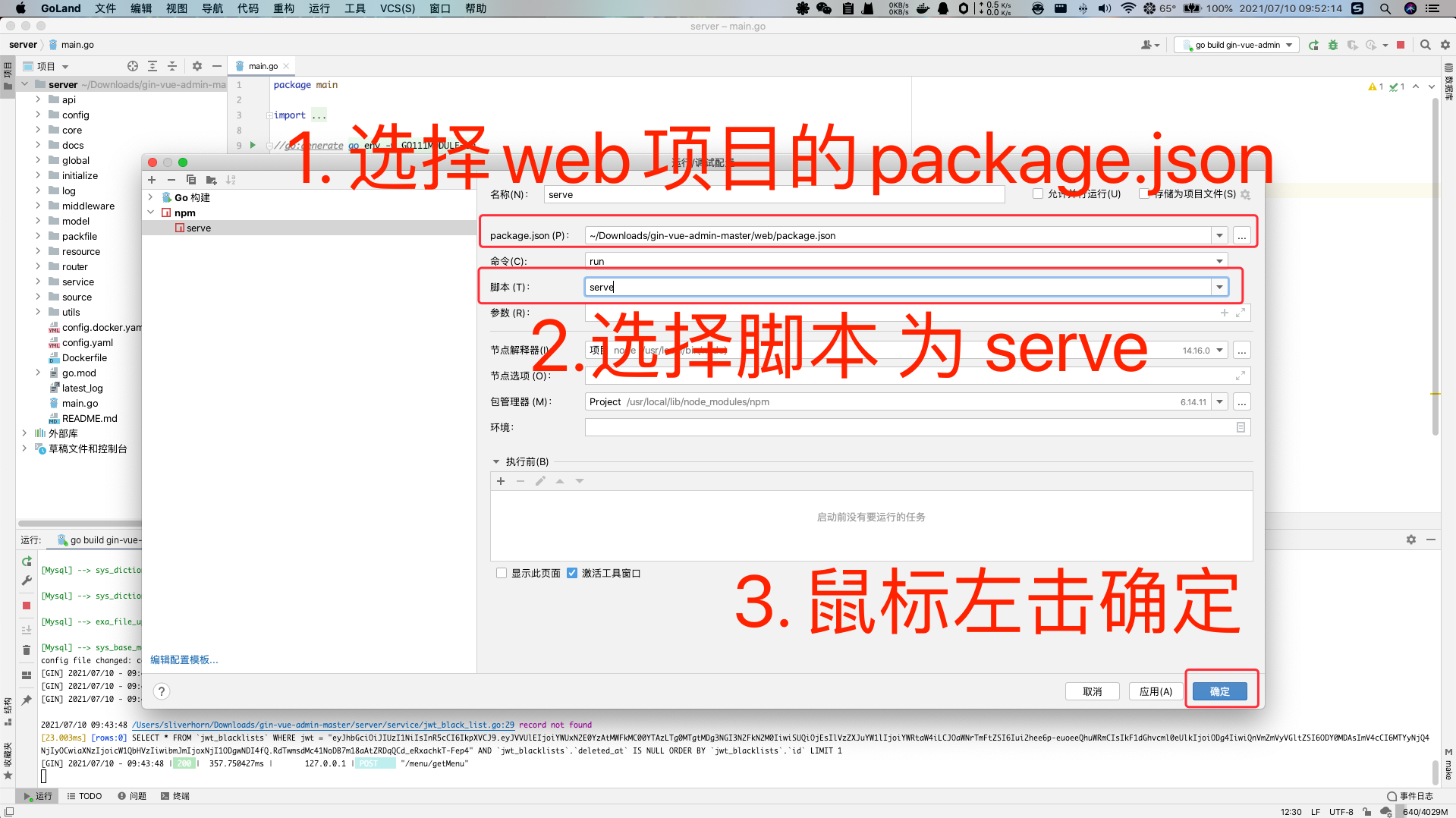
App.4 Configuration Complete
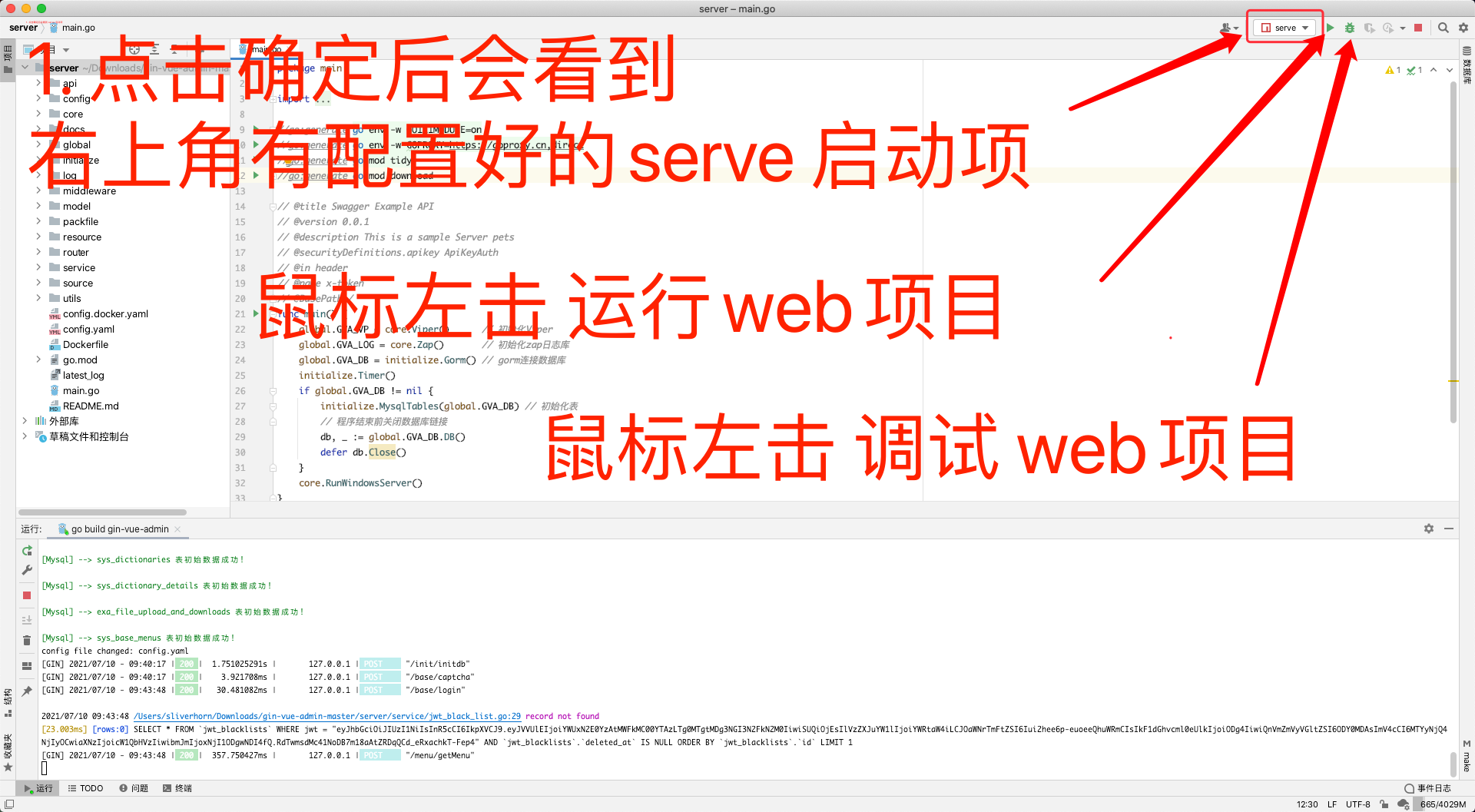
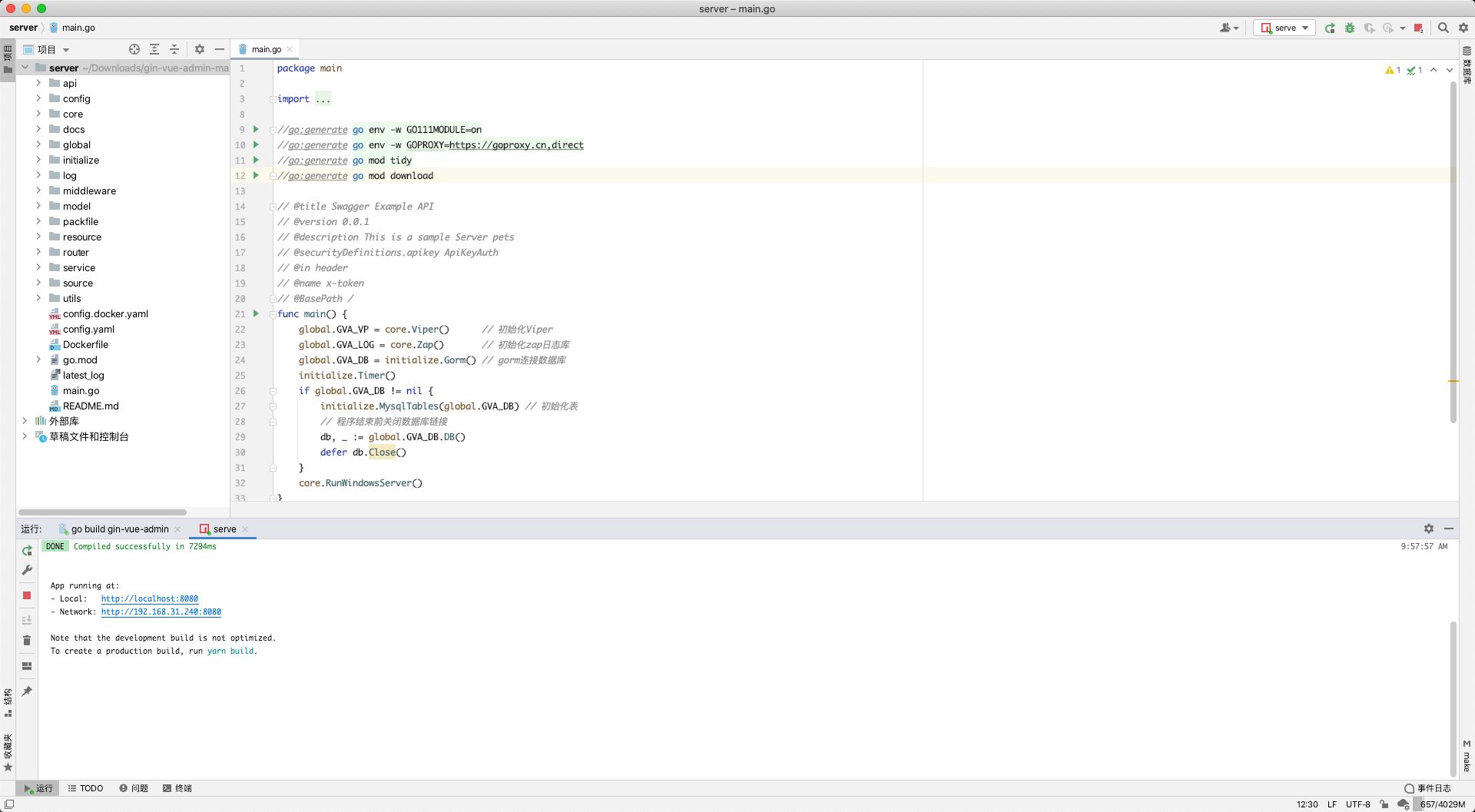
App.5 Start Web Project
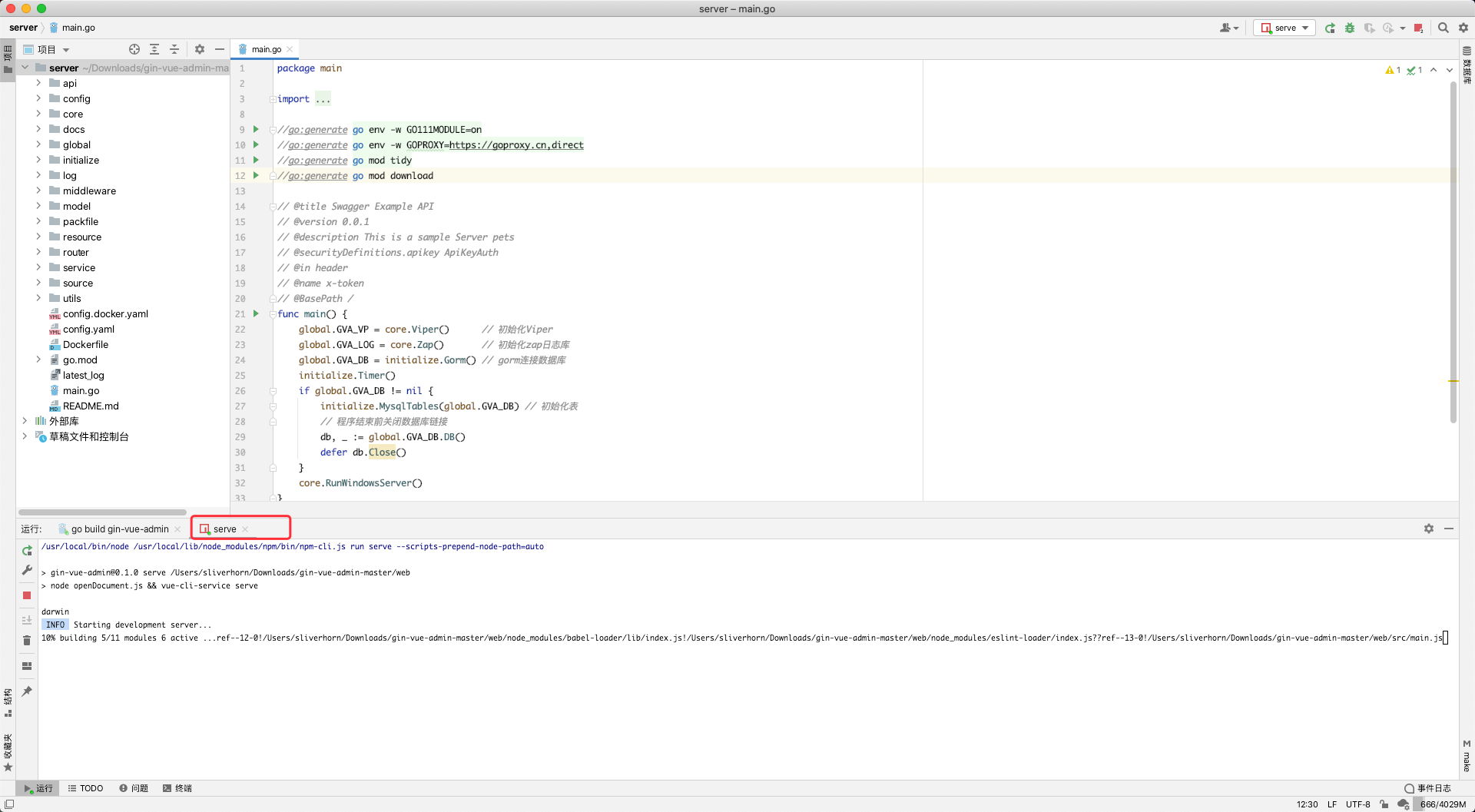
App.6 Web Project Started Successfully