


Export Template
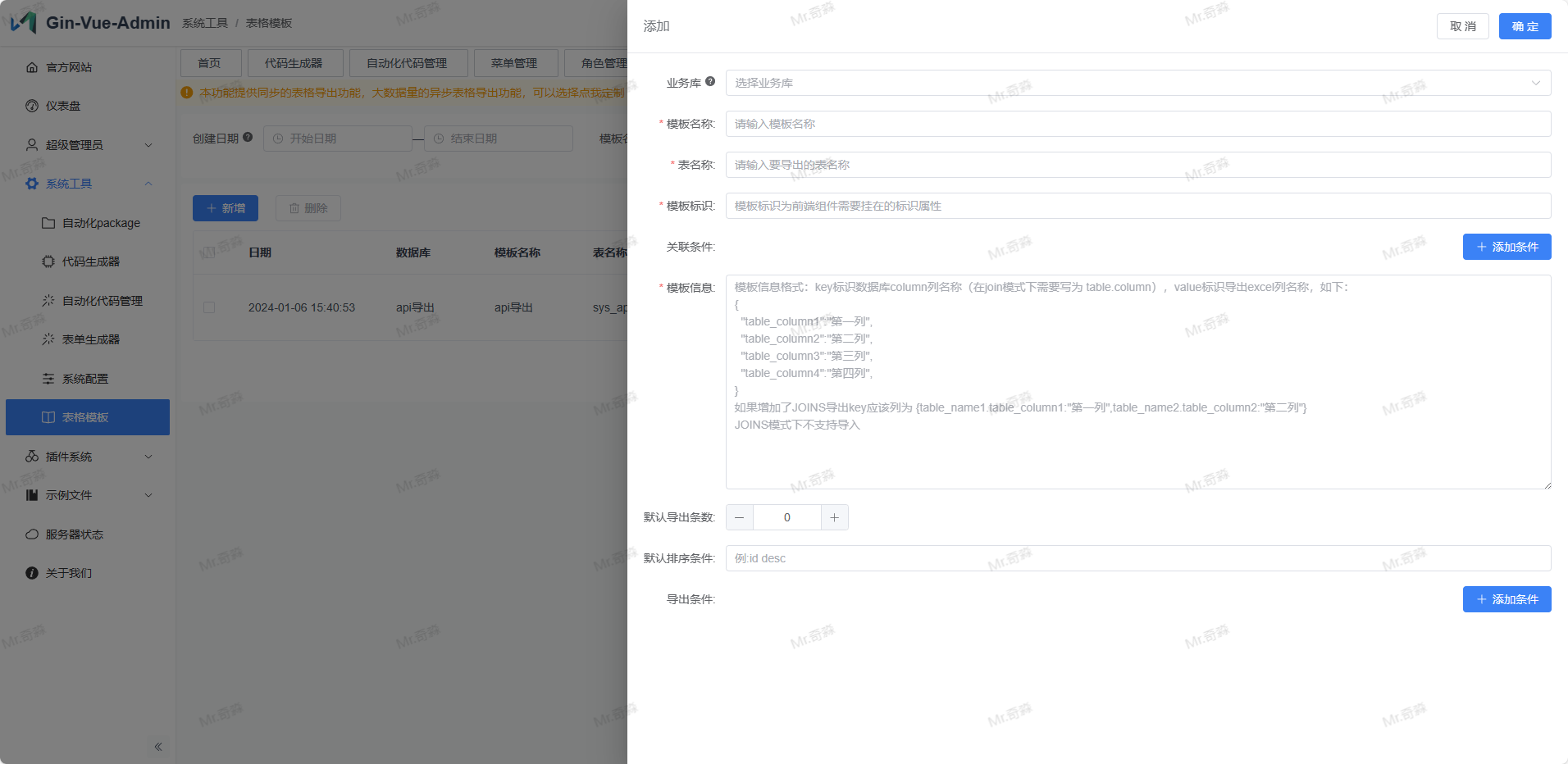
Terminology
- Business Database: Note: Need to configure multiple databases in db-list in advance. If not configured, need to configure and restart the service before use. If unable to select, please set disabled:false in config.yaml and select the target database for import/export.
- Template Name: Chinese mark of the template, mainly used for user memory.
- Table Name: The table that needs to export data, just enter the table name.
- Template ID: Unique identifier of the template, used to distinguish different templates. Passed as
templateIdparameter when using export component. - Join Conditions: Multiple joins can be added here, parameters to select and write are: join method [inner, left, right], join table, join condition.
- Template Information: Receives a json string here to configure the exported table headers, format as follows:
json
    {
        "table_column": "exported_chinese_name_column",
    }
Example (xxx.xxx indicates json mode)
json
    {
        "id": "ID",
        "name": "Name",
        "age": "Age",
        "info.id": "User Info Group ID"
}- Default Export Count: Default number of exported records, if not filled defaults to full export, actual use is subject to ExportExcel's limit parameter.
- Default Sort Condition: Default sort condition, if not filled defaults to no sorting, actual use is subject to ExportExcel's order parameter.
- Export Conditions: Multiple conditions can be added here, each needs to fill in:
key in json,corresponding table column,condition.
Component Usage
Then add the following components in the <script> tag of the page you need to export
javascript
// Export component
import ExportExcel from '@/components/exportExcel/exportExcel.vue'
// Import component
import ImportExcel from '@/components/exportExcel/importExcel.vue'
// Export template component
import ExportTemplate from '@/components/exportExcel/exportTemplate.vue'
Then use it in <template>
html
<!-- Export Component -->
<ExportExcel templateId="api" :condition="yourQueryConditionObject" :limit="10" :offset="10" order="id desc"/>

<!-- Import Component handleSuccess is the callback function after successful import -->
<ImportExcel templateId="api" @on-success="handleSuccess"/>

<!-- Export Template -->
<ExportTemplate templateId="api" />
Parameter Explanation
javascript
    condition: {  // You can pass in query conditions. Conditional export is based on the mapping relationship of query conditions configured in the template.
        type: Object,
        default: () => ({})
    }
    limit: {   // You can limit the number of entries. The default entry limit can be configured in the template. The priority of this parameter is higher than the configuration in the template.
        type: Number,
        default: 0
    }
    offset: {  // You can limit the offset. The default offset can be configured in the template. The priority of this parameter is higher than the configuration in the template.
        type: Number,
        default: 0
    }
    order: {  // You can limit the sorting. The default sorting can be configured in the template. The priority of this parameter is higher than the configuration in the template.
        type: String,
        default: ''
    }
    onSuccess: { // Callback function after successful import
        type: Function,
        default: () => {}
    }
This tag will generate a button. Clicking it will export the corresponding table. Export conditions will be updated in the future, so stay tuned.