


Button Permissions
Implementation method uses Vue's native directive registration approach, Implementation code
js
// Permission button display directive
import { useUserStore } from '@/pinia/modules/user'
export default {
  install: (app) => {
    const userStore = useUserStore()
    app.directive('auth', {
      // When the bound element is inserted into the DOM...
      mounted: function(el, binding) {
        const userInfo = userStore.userInfo
        let type = ''
        switch (Object.prototype.toString.call(binding.value)) {
          case '[object Array]':
            type = 'Array'
            break
          case '[object String]':
            type = 'String'
            break
          case '[object Number]':
            type = 'Number'
            break
          default:
            type = ''
            break
        }
        if (type === '') {
          el.parentNode.removeChild(el)
          return
        }
        const waitUse = binding.value.toString().split(',')
        let flag = waitUse.some(item => item === userInfo.authorityId)
        if (binding.modifiers.not) {
          flag = !flag
        }
        if (!flag) {
          el.parentNode.removeChild(el)
        }
      }
    })
  }
}
Create Button
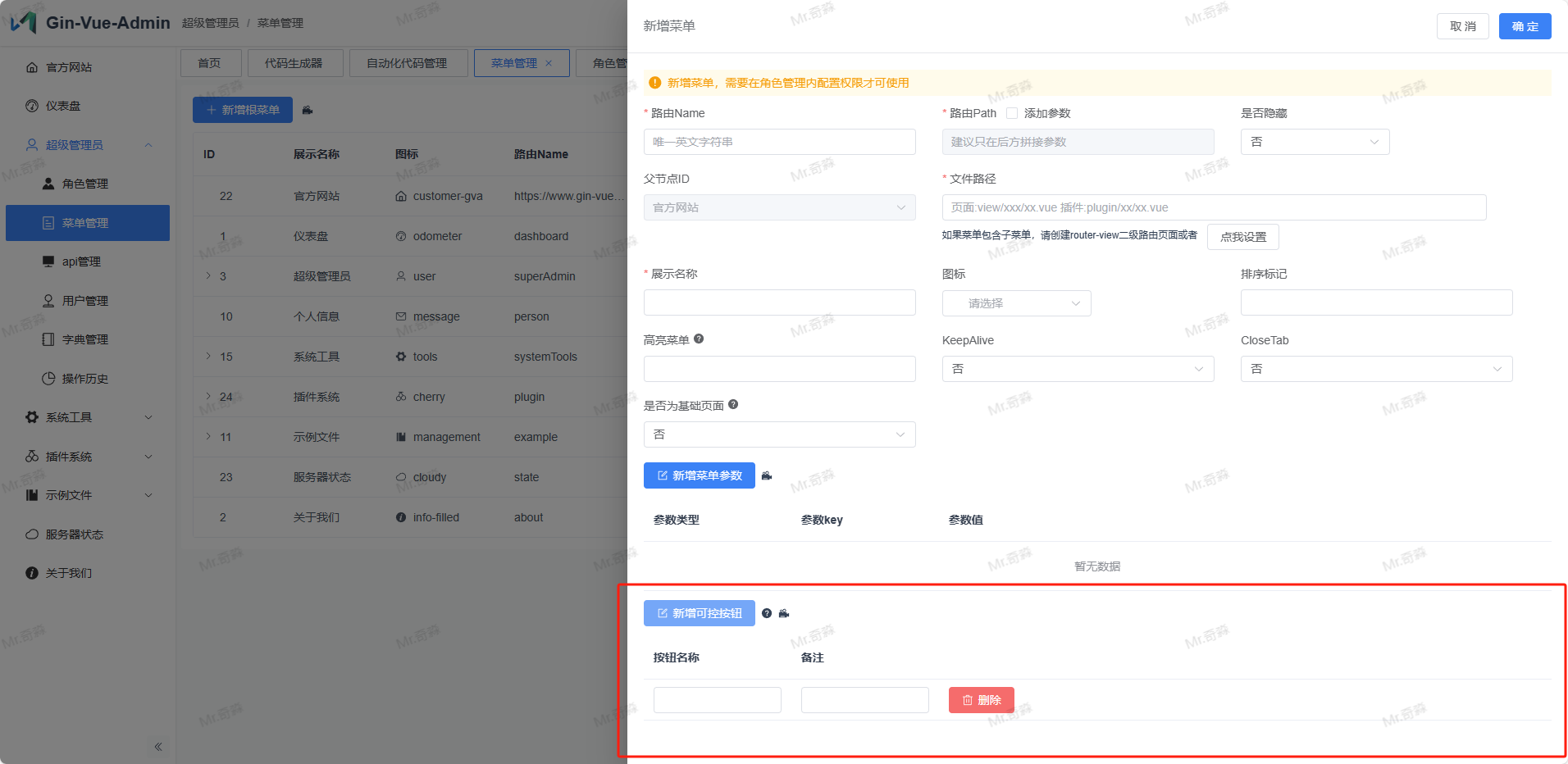
Enter the Menu Management interface, click Add or Edit, click Add Controllable Button below, fill in the button name (English and unique) and description, then click OK
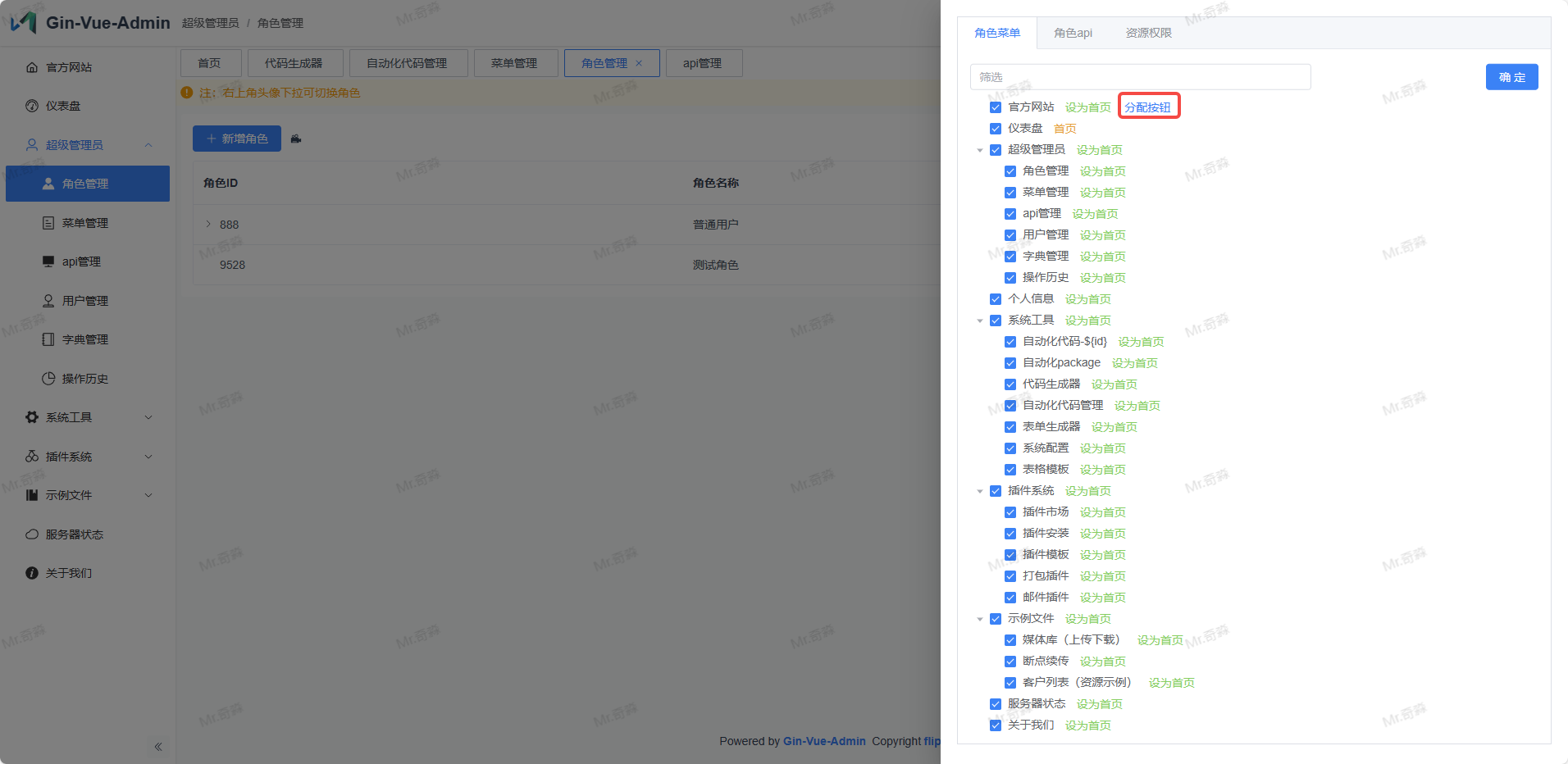
Enter Permission Management, click Set Permissions → Assign Menu, if this menu has controllable buttons, it will display Assign Button Permissions, click to assign
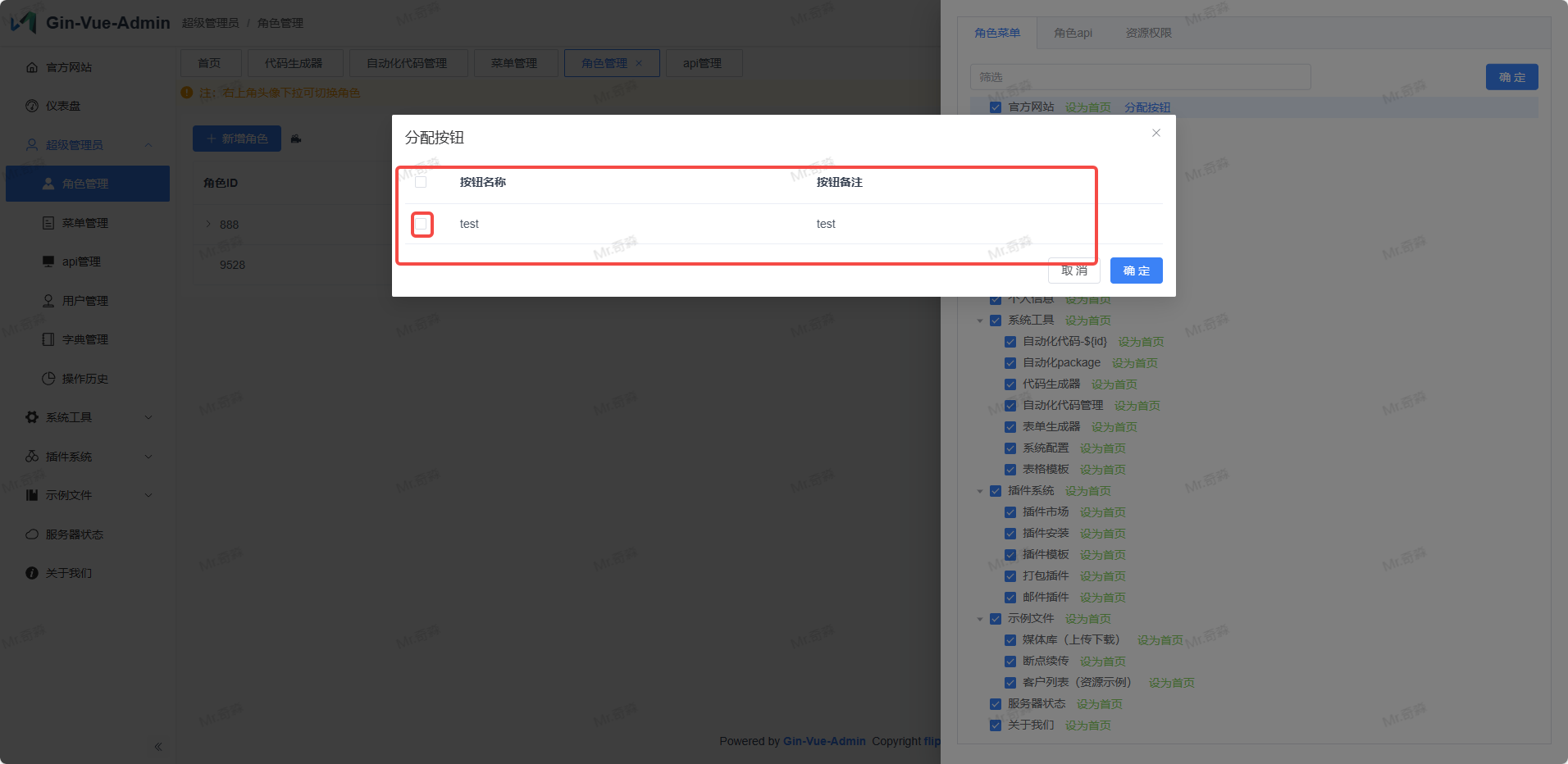
Click OK to complete the assignment.
Code Operations
Enter the frontend page corresponding to the menu with controllable buttons, add the button control component, and add v-auth directive in template to assign the button name that needs to be controlled
vue
<template>
  <div>
//   btnAuth is the fixed syntax for permission component .a where a is the button name created in menu management, after configuration it can control the button
    <div v-auth="btnAuth.a">Button 1</div>
    <div v-auth="btnAuth.b">Button 2</div>
    <div v-auth="btnAuth.c">Button 3</div>
  </div>
</template>

<script setup>
    import { useBtnAuth } from '@/utils/btnAuth'
    const btnAuth = useBtnAuth()
</script>